Path to Financial Balance
Welcome to Balnzed! We’re thrilled to help you simplify your financial journey. Whether you are a business owner or an individual, our intuitive platform is designed to streamline your bookkeeping, budgeting, and financial analysis.
Follow this simple guide to set up your account and achieve financial clarity in minutes.
Create Your Account
Begin by signing up for a free account. You can provide your organization name and email directly, or use Google Sign-In for a faster experience.
- Direct Sign-Up:
- Select the Country
- Enter your Organization Name, Mobile Number and Email Address.
- Check the box to agree to the Terms & Conditions and Privacy Policy.
- Click Create an Account.
- Google Sign-In (Recommended):
- Check the agreement box for Terms and Privacy.
- Click Continue with Google for a faster, one-click experience.
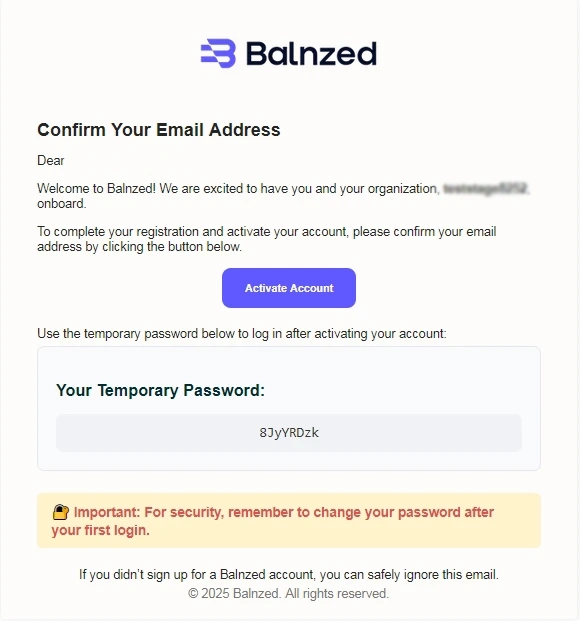
Email Verification
To keep your data secure, we need to confirm it’s really you.
- Check Your Inbox: Look for an email fromsupport@balnzed.com.
- Activate: Click the Activate Account button within that email.
- Wait a Moment: Once activated, our system will automatically prepare your personalized dashboard.
Setup Wizard
Once your account is ready, the Setup Wizard will guide you through your initial configuration.
Company Details
Enter your foundational business information:
- Location: Select your country (e.g., Australia).
- Business Address: Enter your full registered address.
- ABN Number: Provide your Australian Business Number (use the "Look Up" link if you need help finding it).
- Financial Year: Select your specific start date.
- Personal Info: Provide your First Name and Phone Number.
Click Let’s Start to move forward.
R&D Tax Incentive (Optional)
Note: This section is specifically for our Australian users.
If your business engages in Research and Development, you may be eligible for tax incentives.
- Track financial performance with real-time accuracy.
- Business Address: Enter your full registered address.
- Manage property and business accounts with ease.
- Join a community of like-minded professionals.
1. The Dashboard: Your Financial Pulse
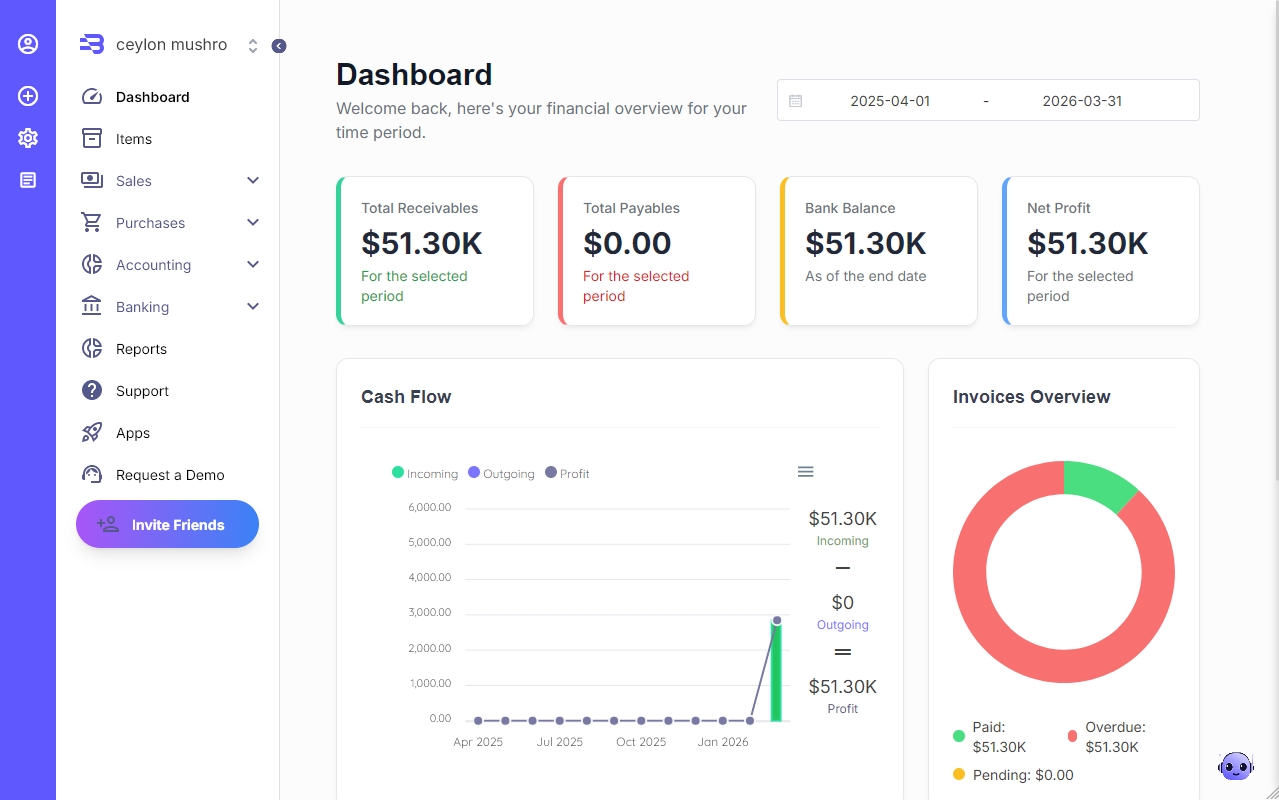
The Balnzed Dashboard is a real-time command center. It transforms complex data into clear, visual insights so you can monitor your business's health at a glance.
Key Financial Indicators
Total Receivables
Money owed to you by customers.
Total Payables
What you owe to vendors.
Bank Balance
Reconciled balance across all accounts.
Cash Flow
Visual trend of money in vs money out.
Invoices Overview
Manage your billing lifecycle with a segmented breakdown of your revenue:
Recent Invoice Activity
Bank Accounts
A dedicated section to monitor your liquidity. You can see individual balances for each connected bank account, ensuring you always know where your cash is sitting.
Pro-Tip
Hover over the Cash Flow chart to see specific data points for each month. This helps you predict periods when cash might be tight or when you’ll have extra funds to reinvest in your business.
2. The Navigation Menu: Your Command Center
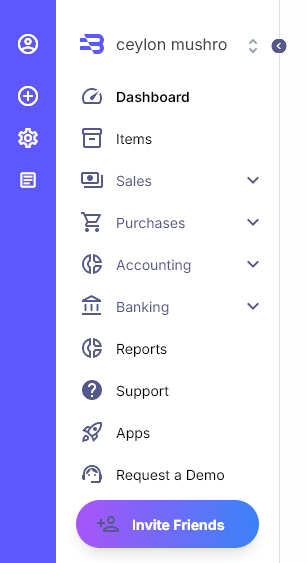
Located on the left (or top) of your screen, this menu is your gateway to the core modules of Balnzed. It is organized to follow the natural flow of your business operations.
Core Operations
Dashboard
Your 'Home Base' for a real-time financial overview.
Items
Centralize your Products, Services, and Inventory records.
Sales
Manage the revenue side—from Quotes and Invoices to Customer relationships.
Purchases
Track spending by recording Bills, Expenses, and managing Vendors.
Accounting
Deep-dive into your Chart of Accounts, Journal Entries, and bookkeeping.
Banking
Connect bank feeds, view balances, and Reconcile transactions with ease.
Reports
Generate professional Profit & Loss, Balance Sheets, and Tax Summaries.
Expansion & Support
Apps (The Marketplace)
Power up your Balnzed experience by integrating specialized tools:
- Inventory Management
- Payroll
Support
Access our comprehensive help center, tutorials, and direct assistance.
Request Demo
Request a live demo with a specialist to see how Balnzed serves your unique business model.

3. The Sidebar & Quick Actions
The Sidebar is your command center for administrative tasks, account security, and rapid data entry.
Profile & Security
Manage your personal identity and team access:
Profile
Update personal info and preferences.
Team Management
Manage Users and assign Roles/Permissions.
Logout
Securely exit your session.
The "New" Menu (+)
Designed for speed, the New menu allows you to create records instantly from any screen:
Transactions
Generate an Invoice, Bill, or record Income/Expenses.
Contacts
Add a new Customer or Vendor.
Internal
Log a Transfer between accounts.
Settings: Business & Configuration
Customize how Balnzed works for your specific business needs:
Company Management
Update Company details, Sync data, or Migrate Data from other platforms.
Preferences
Set your Localisation (timezone/region) and manage Email Templates.
Financial Setup
Configure Currencies, Taxes, and Scheduling for automated tasks.
Billing & Account
Manage your subscription Plans or Delete Company records.
Takes you directly to this Documentation Site.
Note: We recommend setting up your Taxes and Localisation immediately after your first login to ensure all future invoices are compliant and accurate.
Pro Tip
Use the "New" button in the Sidebar to save time. It allows you to skip the menus and jump straight into creating a new record from any screen.
Creating a New Customer
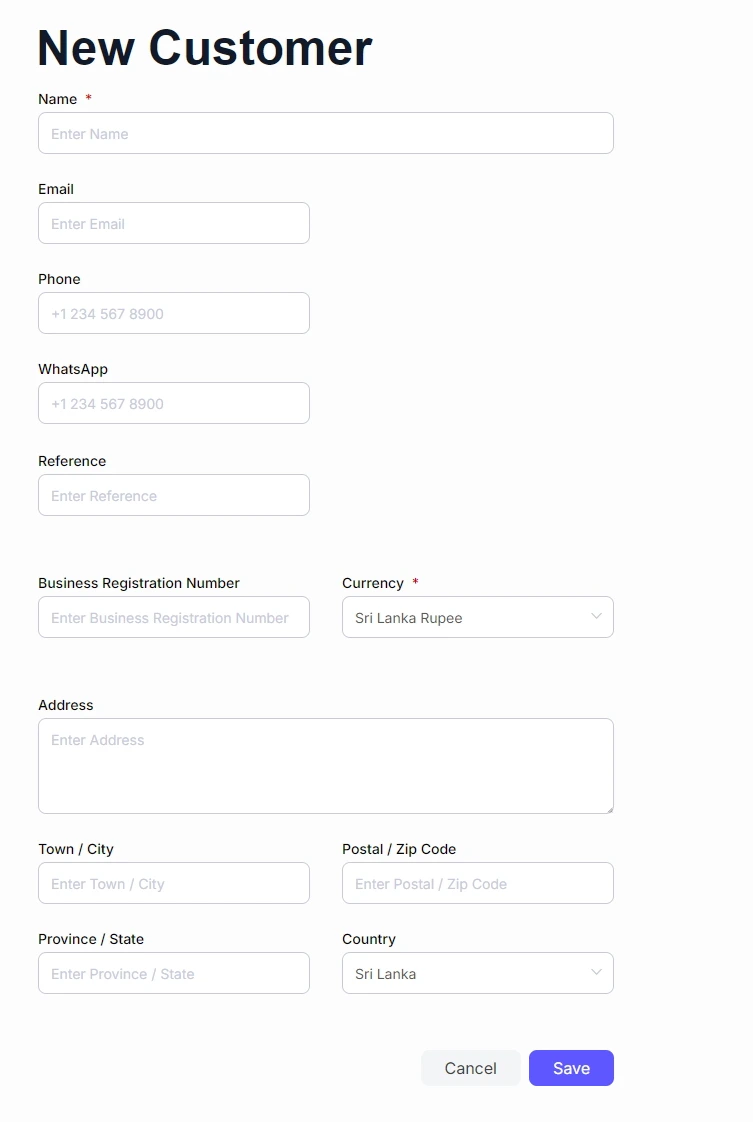
Adding a new customer profile allows you to streamline your billing process by auto-populating contact and tax information on future invoices.
1. Primary Contact Details
Name & Email
Enter the official business name and the primary email address for invoice delivery.
Phone & Website
Provide direct contact numbers and the business website for reference.
2. Business Identification
ABN Number
Enter the official Australian Business Number (ABN) for tax compliance.
Currency
Set the default trading currency (e.g., Australian Dollar) for this client.
3. Address & Location
Provide the full physical address to ensure legal compliance on all issued documents:
Billing Address
Include Town/City, Postal/Zip Code, and Province/State.
Country Selection
Select the specific country (e.g., Australia) from the dropdown menu.
Saving the Profile
Review all mandatory fields marked with a red asterisk (*). Click the Save button to commit the record to your database, or Cancel to discard changes.
Managing Your Customers
The Customers section is your central hub for tracking who you do business with and monitoring their specific financial impact on your company.
Accessing the Customer List
To view your current records, navigate to the Sales section in the main menu and select Customers.
Understanding the List View
The Customer Dashboard
At the top of the page, you can see a high-level summary of your customer-related finances:
Total amount currently past its payment deadline.
Total amount currently invoiced but not yet paid.
Value of invoices currently being prepared for customers.
Your customers are organized in a detailed table for quick reference:
Actions and Options
Quick Actions
Hover over any specific customer row to reveal options to View, Edit, Duplicate, or Delete that record.
Bulk Management
Click the ellipses menu icon (⋮) at the top right to reveal Import and Export options for managing large lists of data.

Invoices
1. Creating a New Invoice
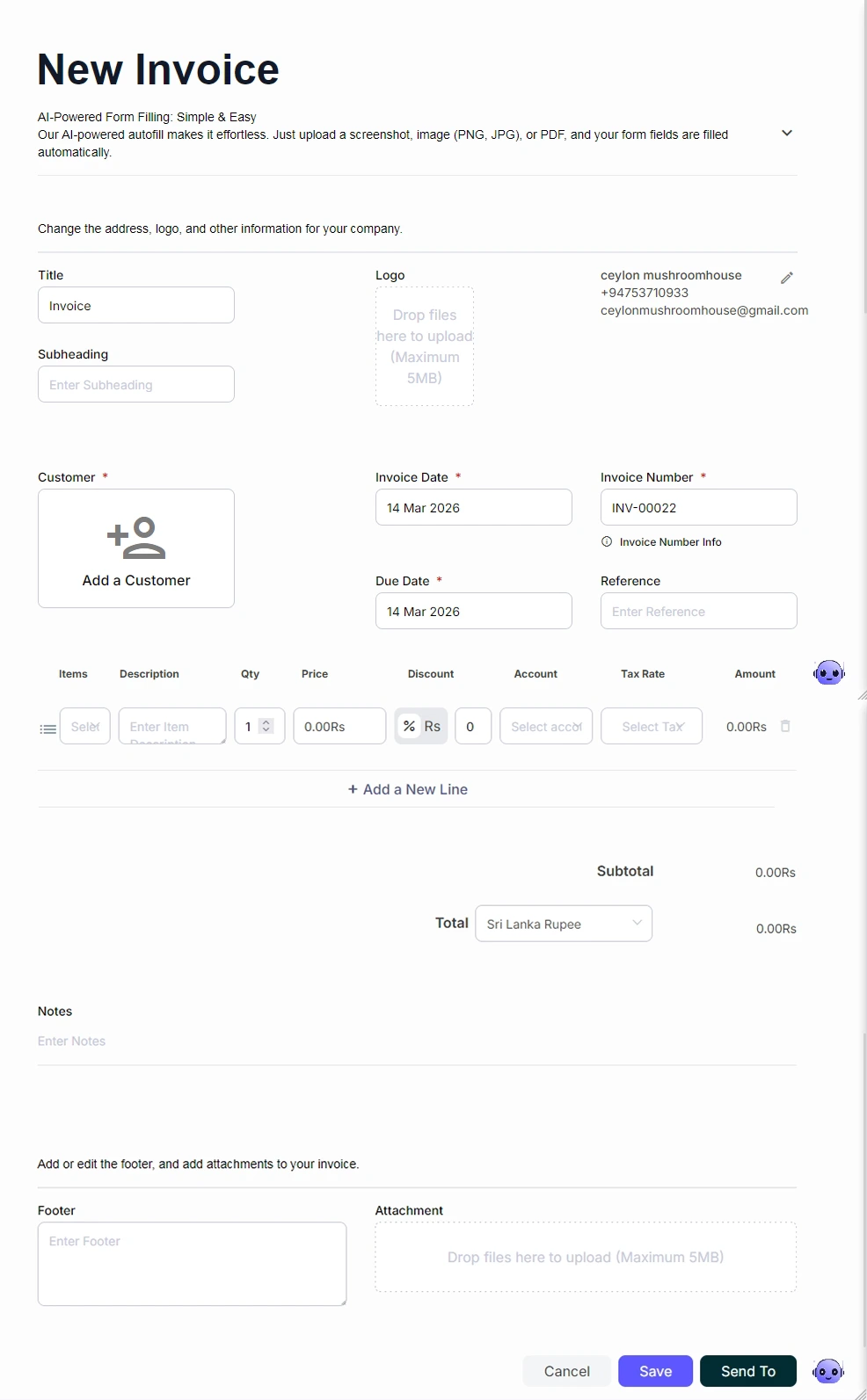
To begin, navigate to Sales in the sidebar and select Invoices. Click the New Invoice button to open the editor.
Balnzed features AI-Powered Form Filling. You can upload a photo or PDF of a previous invoice, and the system will automatically extract and fill the form fields for you.
Invoice Customization
- Company Branding: Customize your Title, Subheading, and upload a business Logo (up to 5MB).
- Customer Selection: Choose an existing client or use the Add a Customer icon to create a new profile instantly.
- Smart Dating: Set the Invoice Date and choose a Payment Due term, such as "Due upon receipt" or "Due within 30 days".
- Line Items: Select from your Chart of Accounts (e.g., Sales, Interest Income) and apply the correct Tax Rate (e.g., VAT 18%).
2. Finalizing and Sending
Once your details are entered, you can Save the document as a Draft or click Send To to share it with your customer.
Multi-Channel Sending
After saving, you can send the invoice via Email, WhatsApp, or generate a Share Link to send manually.
Activity History
Every action—from document creation to marking as sent—is tracked with a timestamp and user ID for full audit transparency.
3. Adding and Managing Payments
Once an invoice is marked as Sent, the Get Paid section becomes active.
Recording Payments
Click Add Payment to open the payment window. Select the Payment Method (e.g., Cash), the destination Bank Account, and the Amount.
Partial Payments
You can edit the amount field to record a partial payment. Balnzed will automatically calculate the remaining balance.
Post-Payment Actions
Once a payment is recorded, you can Send a Receipt, Edit the transaction, or Delete it if recorded in error.
4. Automating with Recurring Invoices
For subscription models or repeat services, use Recurring Templates to automate your billing.
Setup
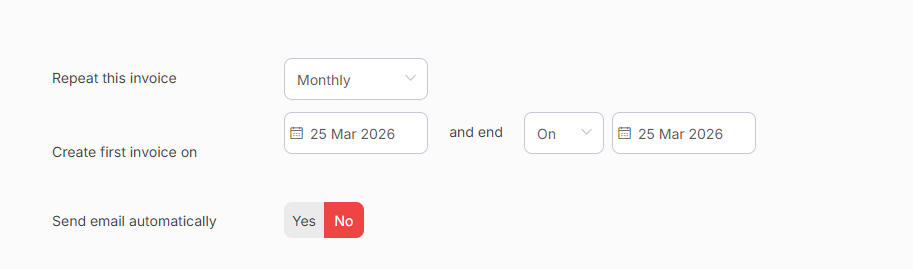
Go to the Recurring Templates tab and click New Recurring Invoice.
Automation Settings
Specify the Start and End dates for the recurrence and choose if you want Balnzed to Send the email automatically.
5. Invoice Overview & Management
The main Invoices page provides a high-level summary of your accounts receivable.
The Status Dashboard
Management Tools
The list view allows you to filter invoices by status (e.g., Awaiting Payment, Paid, Reject). By hovering over an invoice or clicking the ellipses menu, you can access quick actions like Edit, Duplicate, or Print.
Quotation
1. Creating a New Quotation
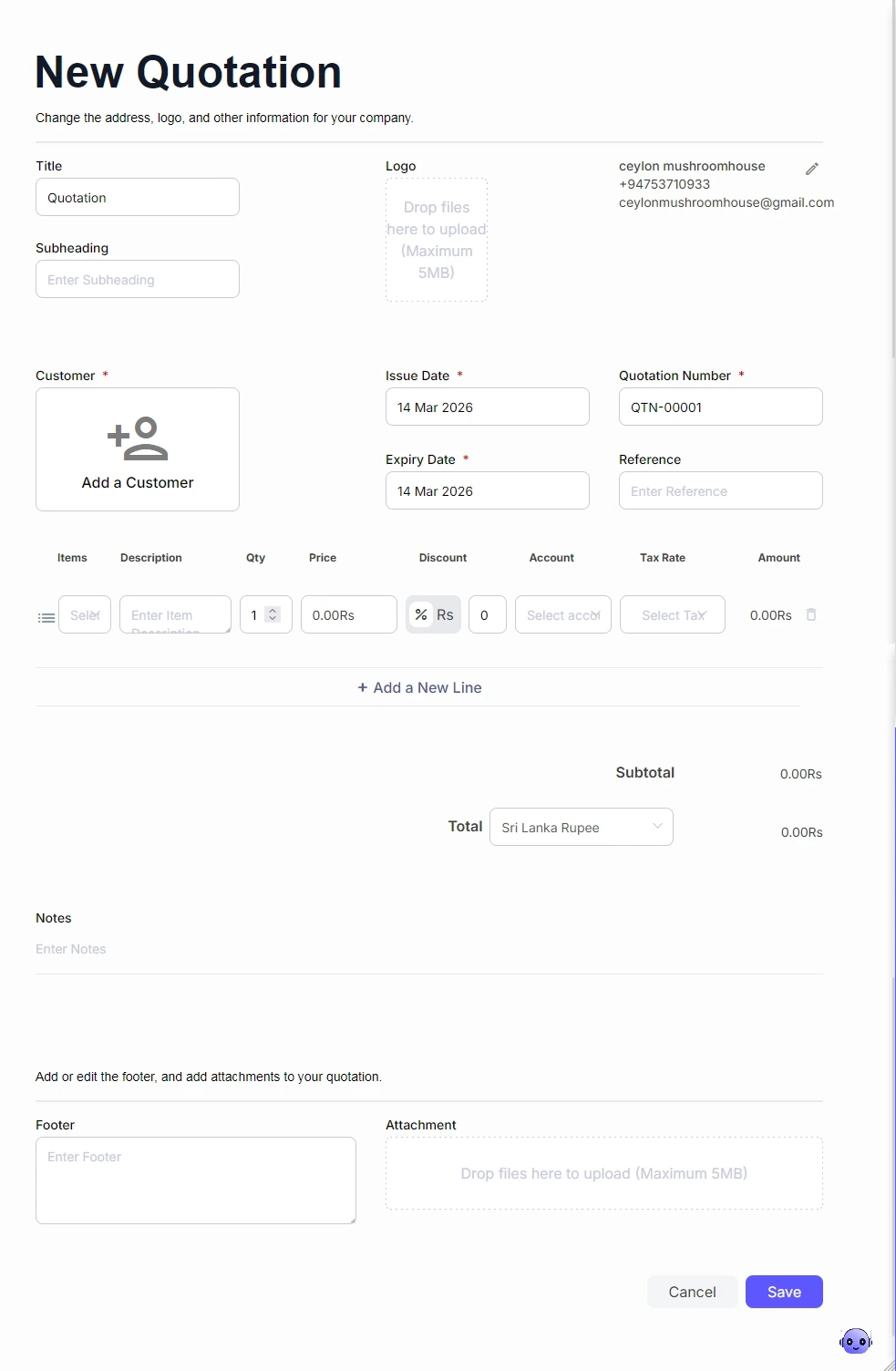
Navigate to Sales in the sidebar and select Quotations. Click the New Quotation button to open the editor.
Quotation Customization
Branding: Customize Title, Subheading, and upload a Logo (up to 5MB).
Company Information: Details are auto-populated but can be modified using the edit icon.
Customer Details: Choose an existing client or use the Add a Customer icon.
Key Dates: Select Issue Date and set an Expiry Date using the calendar picker.
Line Items: Add goods/services by selecting an Account and Tax Rate (e.g., VAT 18%).
2. Finalizing and Sending
Once your details are entered, click Save to store the document as a Draft.
Multi-Channel Sending
Send directly via Email or WhatsApp, or generate a Share Link.
Audit Trail
Track Activity History, showing exactly when it was created and by whom.
3. Tracking and Converting to Invoice
Sent quotations are reflected in charts and dashboards for accurate financial planning.
Mark as Sent
Use the Mark Sent button to update status if sharing manually.
Convert to Invoice
Transform into a billable document instantly to eliminate manual reentry.
4. Quotation Overview & Status Dashboard
The main Quotations page provides a high-level summary of your pending proposals.
Status Categories
Management Tools
Displays essential details like Due Date, Status, and Amount. Use search or filters to find specific records.
Credit Notes
1. Creating a New Credit Note
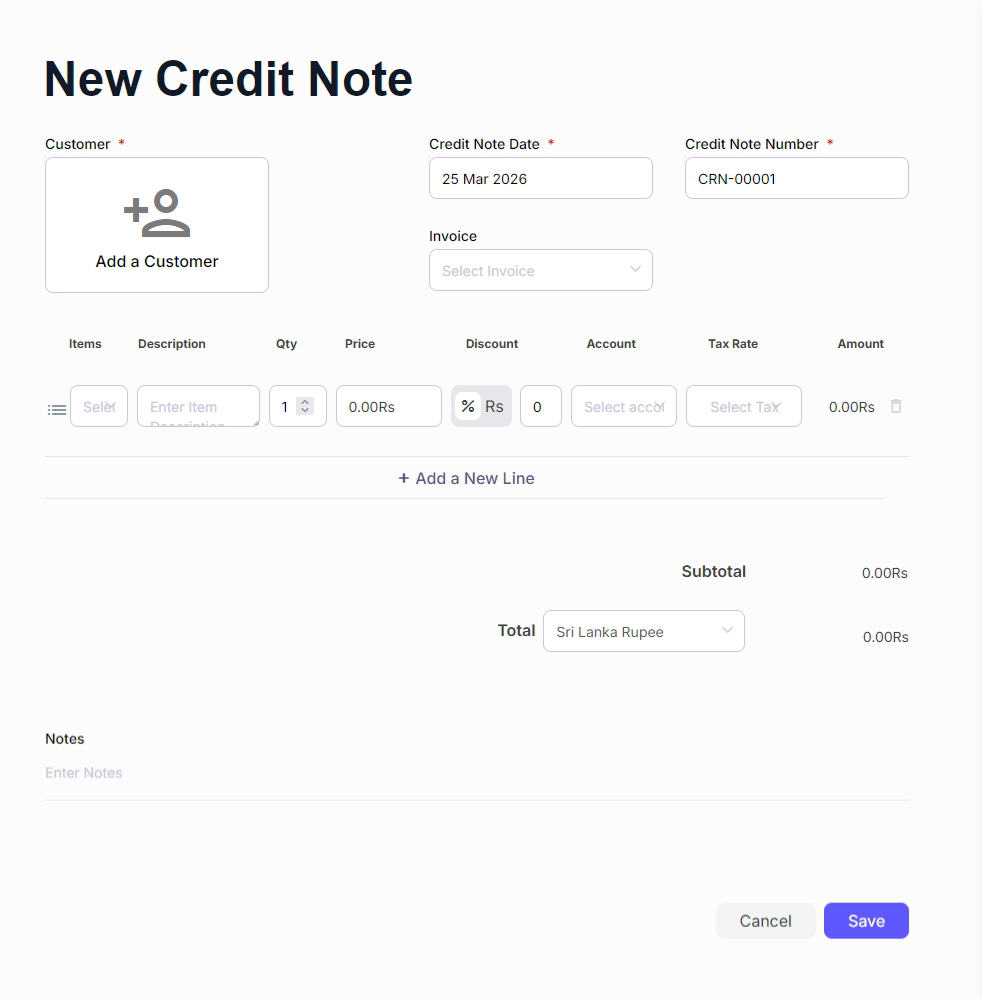
To issue an adjustment, navigate to Sales in the sidebar and select Credit Notes. Click the New Credit Note button to open the creation interface.
Form Customization
- Customer SelectionChoose an existing client or click Add a Customer to create a new profile.
- Essential DatesUse the calendar picker to set the Credit Note Date.
- Documentation ReferenceAssign a unique Credit Note Number and link it to a specific Invoice for clear auditing.
- Adjusting Line ItemsSelect the appropriate Account (e.g., Sales, General Expenses) and Tax Rate to ensure the refund or correction is categorized correctly.
- Notes & AttachmentsInclude internal notes for record-keeping and upload any supporting documentation (up to 5MB).
2. Finalizing and Distribution
After entering the details, click Save to store the document.
Draft Status
New notes are saved as a Draft and will not be reflected in your financial charts until they are officially issued.
Multi-Channel Sending
Once saved, you can deliver the Credit Note to your customer via Email, WhatsApp, or by generating a Share Link.
Mark as Sent
If you distribute the document manually, use the Mark Sent button to update its status within the system.
3. Tracking and Activity History
Balnzed provides a detailed Activity History for every credit note, allowing you to track changes and identify contributors.
Timestamped Logs
View the exact date and time the document was created or marked as sent.
User Tracking
Identify which team member performed specific actions on the document.
4. Credit Notes Overview & Status Dashboard
Manage all adjustments from the central Credit Notes dashboard, which provides a high-level summary of your financial corrections.
Status Indicators
Adjustment in progress
Issued to customer
Management Tools
The list view allows you to sort records by Due Date, Customer, or Amount. By hovering over a record or using the ellipses (⋮) menu, you can quickly Edit, Duplicate, or Delete the credit note as needed.
Vendor
To build a comprehensive directory of your suppliers and service providers, follow these steps to manage your Vendors. This allows you to organize your supply chain and accurately track your company's expenditures.
1. Accessing and Adding a New Vendor
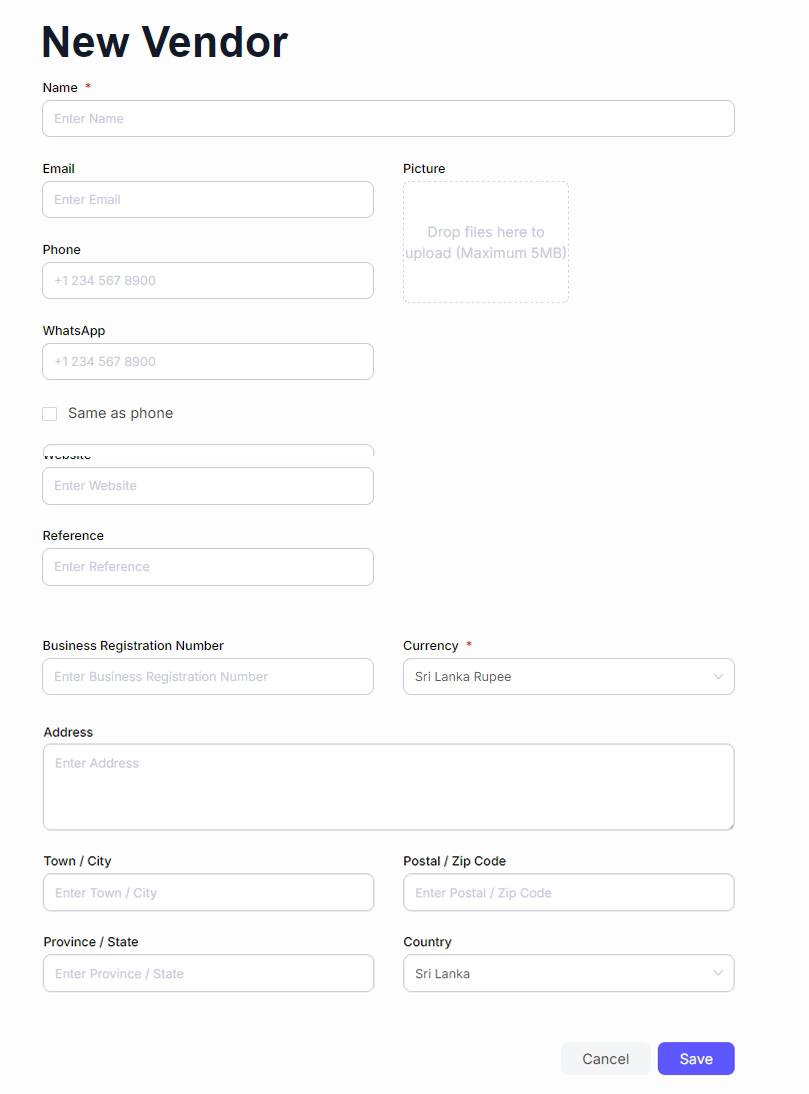
To begin, navigate to the Purchases section in the main navigation menu and select Vendors. From there, click the New Vendor button to open the setup form.
Primary Contact
Enter the vendor's Name (required), Email, Phone, and WhatsApp number.
Business Profile
Provide their Website, internal Reference notes, and upload a Picture or logo (up to 5MB).
Financial Settings
Enter the Business Registration Number and select the default Currency (e.g., Sri Lanka Rupee).
Address Details
Complete physical location: Town/City, Postal Code, Province, and Country (e.g., Sri Lanka, Australia, or UAE).
Click Save to finalize the profile and begin recording bills or purchase orders.
2. Managing the Vendor List
Once saved, your vendors are organized in a list view for high-speed reference:
3. The Vendor Status Dashboard
The top of the Vendors page features a summary dashboard that provides a high-level view of your accounts payable:
Overdue
Total balance currently past its agreed payment terms.
Open
Total balance of active bills currently awaiting payment.
Draft
Value of bills being prepared that have not been finalized.
Bills
1. Creating a New Bill
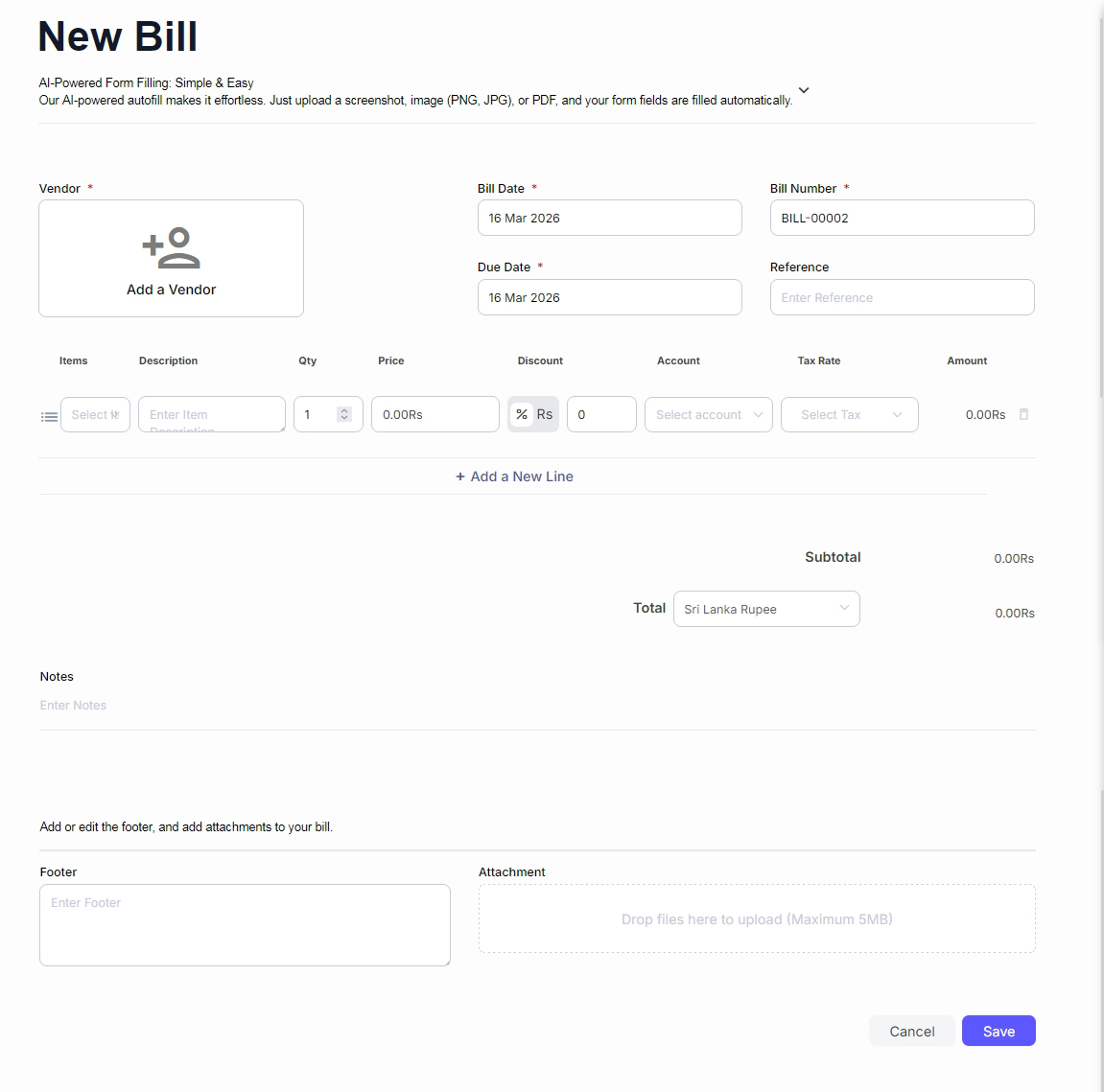
To record a new obligation, navigate to Purchases and select Bills, then click New Bill.
Effortless Setup
Skip manual entry by uploading a screenshot, image (PNG, JPG), or PDF of your vendor's invoice.
Automatic Detection
Balnzed’s AI extracts the data and fills the form fields automatically.
Manual Entry Details
Vendor Selection: Choose an existing vendor or click the Add a Vendor icon to create a new profile instantly.
Document Info: Enter the Bill Date, a unique Bill Number, and the Due Date.
Line Items: Detail your costs by selecting the correct Account (e.g., Cost of Goods Sold, Rent, Office Expenses) and applying relevant Tax Rates.
Attachments: Upload original receipts or invoices (up to 5MB) to keep your records audit-ready.
2. Finalizing the Bill
Draft Status
Initially saved as a Draft; won't appear in financial charts until finalized.
Mark Received
Click to officially record the obligation in your system.
3. Adding Payments
Add Payment
Open the payment window to enter the amount and payment method.
Partial Payments
Record split payments if not settling the full balance at once.
4. Bills Overview & Dashboard
Management Tools
Organize by Date, Status, or Vendor. Use the ellipses (⋮) menu to Edit, Duplicate, or Delete records.
Purchase Order
1. Creating a New Purchase Order
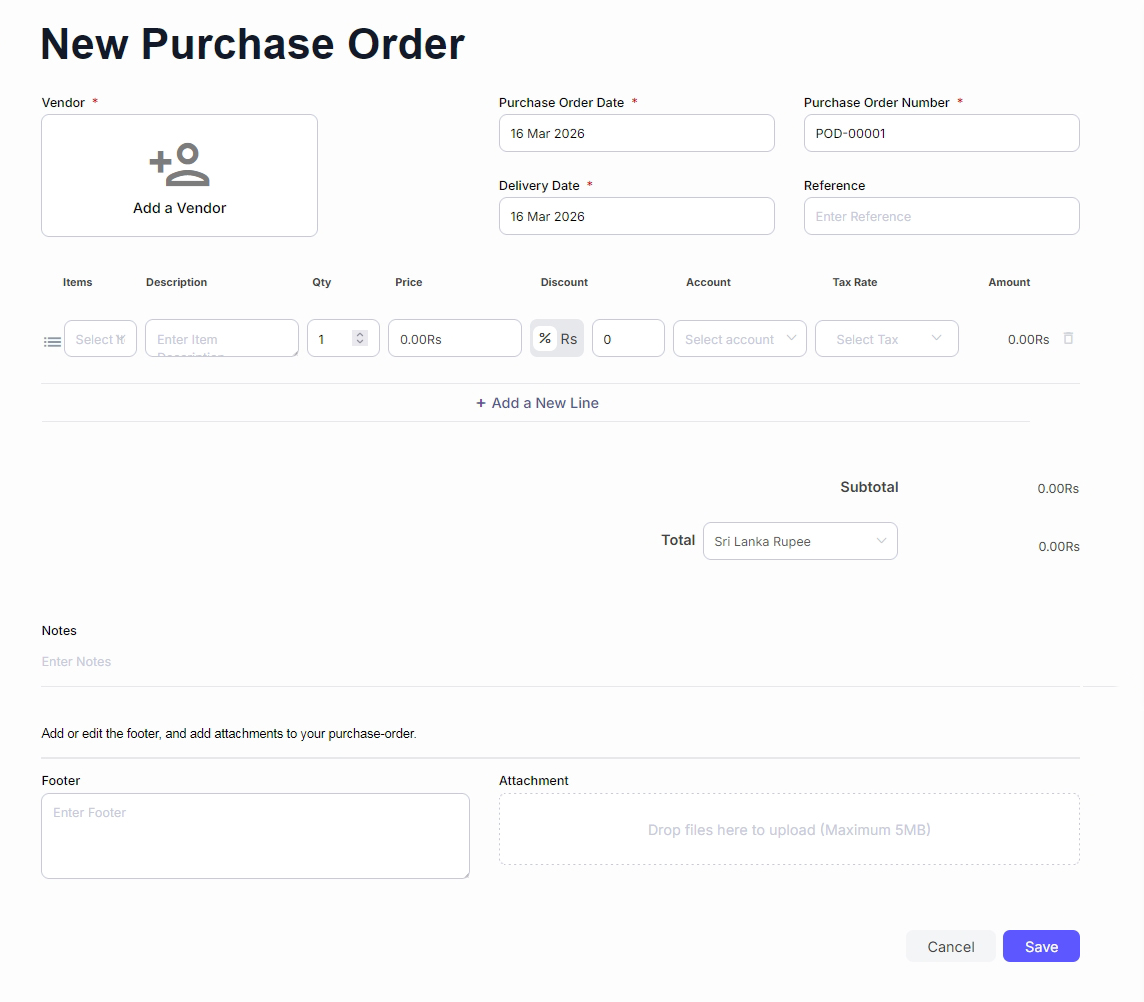
To initiate a request, navigate to the Purchases section in the sidebar and select Purchase Order.
Form Customization
Select a supplier from 'Choose a different vendor' or verify auto-populated details.
Set the Purchase Order Date and a specific Delivery Date using the calendar picker.
Assign a unique PO Number and an optional Reference for tracking.
Detail your request by selecting the correct Account and applying Tax Rates.
Upload specs (up to 5MB) and add specific instructions in Notes or Footer.
2. Finalizing and Distribution
Internal record; not yet in active procurement charts.
Send via Email, WhatsApp, or Share Link.
History records every status change and creator info.
3. Converting to a Bill
Once goods/services are received, save time by converting the approved PO directly into a Bill. This ensures prices and quantities carry over accurately for payment.
4. Purchase Order Overview & Status Dashboard
Management Tools
The list view allows sorting by Date, Vendor, or Amount. Access Edit, Duplicate, or Delete from the ellipses (⋮) menu.
Accounting
1. Chart of Accounts
The Chart of Accounts is the organized list of every account your business uses to record financial transactions.
Create a New Account
To add a specific category to your ledger, follow these steps:
Navigate to the Accounting section and select Chart of Accounts.
Click the New Chart of Account button.
Enter Details
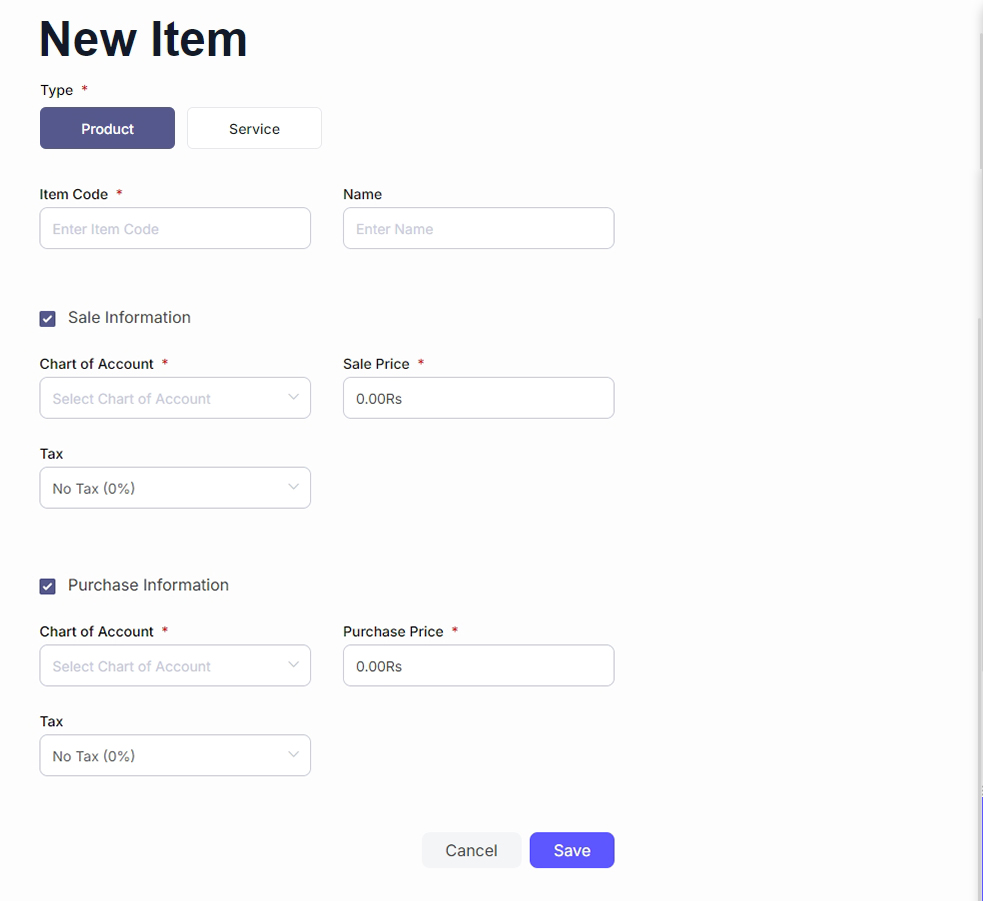
Account Type
Categorize the account (e.g., Asset, Liability, Equity, Income, or Expense).
Code
Assign a unique numerical code for tracking (e.g., 404 for Bank Fees).
Name
Provide a clear name for the account (e.g., "Office Equipment").
Finalize
After entering the necessary details, click Save.
Manual Journals
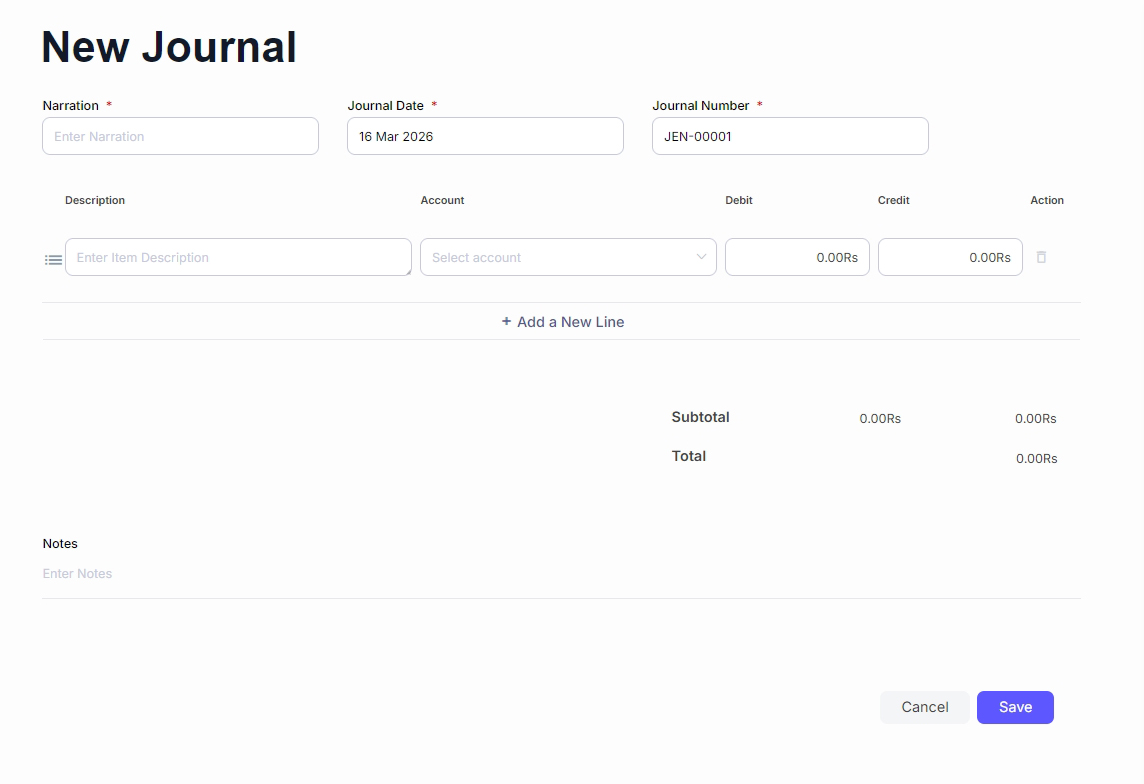
2. Manual Journals
"Use Manual Journals for transactions that don't fit into standard forms (like invoices or bills), such as depreciation, interest, or correcting entries."
Create a New Journal Entry
Access
Go to the Accounting section and select Manual Journal.
Action
Click the New Journal button.
Enter Details
Provide the date, a descriptive reference, and the specific accounts to be debited and credited.
Finalize
Once the journal is balanced and details are complete, click Save.
Banking
Bank Accounts
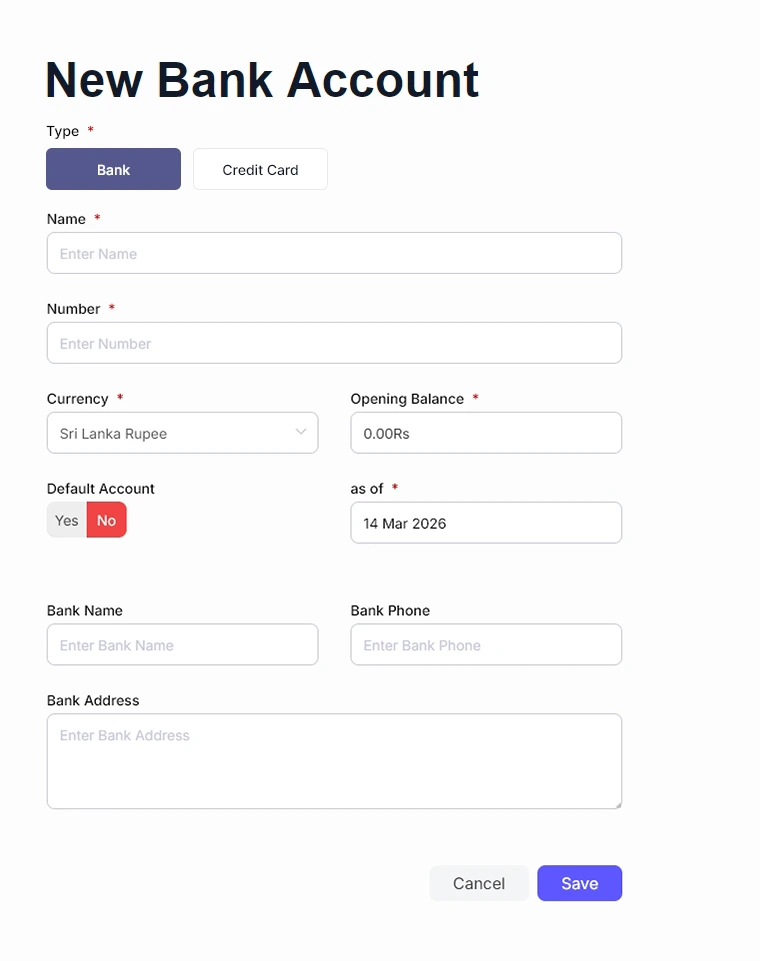
Manage your liquidity by adding your physical bank accounts, credit cards, or cash on hand.
Adding a Bank Account Manually
Go to Banking > Bank Accounts and click New Bank Account.
Enter Details
Name & Number
Enter the account title and official account number.
Currency
Choose your operating currency (e.g., Sri Lanka Rupee).
Opening Balance
Enter the balance as of a specific date for historical accuracy.
Default Account
Toggle 'Yes' if this is your primary account for transactions.
Transactions (Income & Expense)
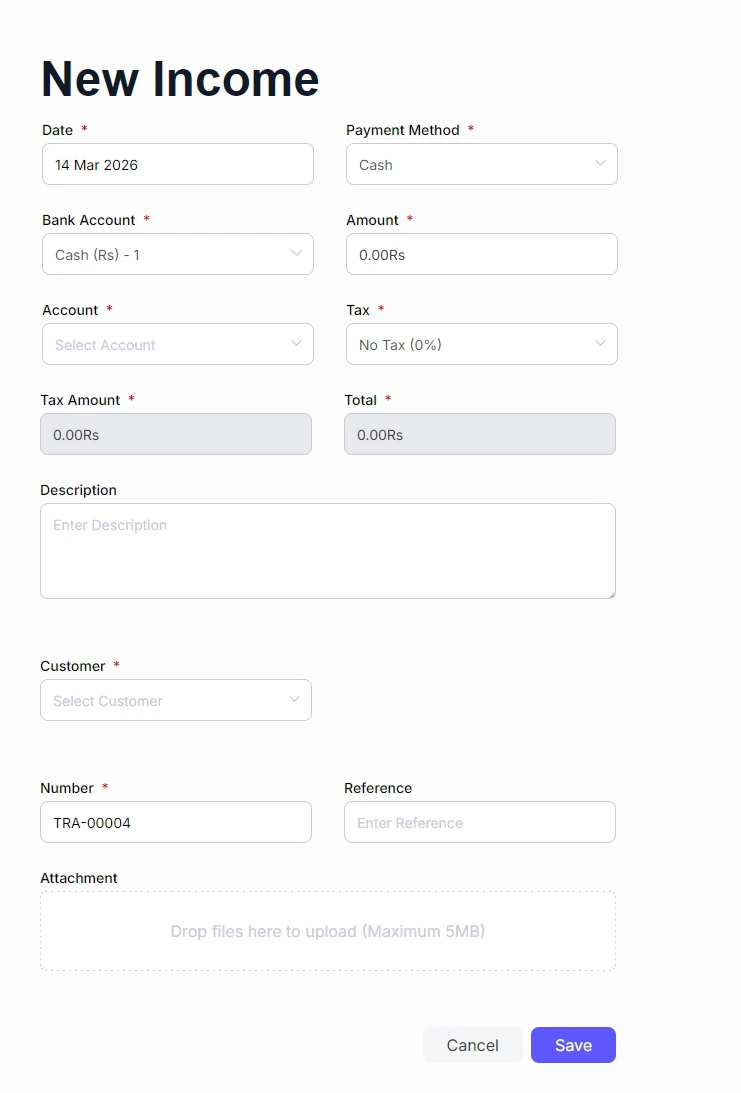
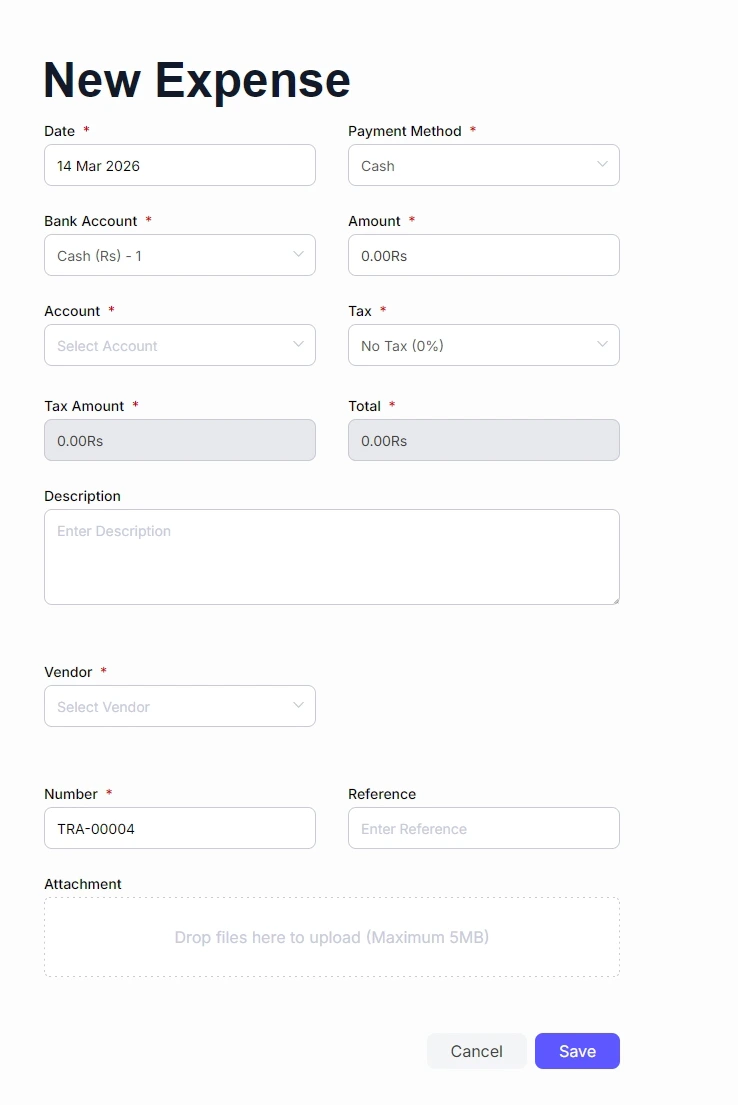
Beyond automated feeds, you can manually record money coming in or going out.
Creating Transactions
New Income
For non-invoice revenue
Enter the Date, Payment Method, Account, Amount, and Customer.
New Expense
For immediate spending
Enter the Date, Payment Method, Account, Amount, and Vendor.
Transaction Dashboard
The dashboard features powerful filtering and search tools to maintain oversight of your financial history.
Filter by Account
View transactions for specific accounts (e.g., "Cash").
Search Bar
Quickly find records by number, description, or amount.
Status Badge
Instantly see if a transaction is Reconciled or Unreconciled.

3. Transfers
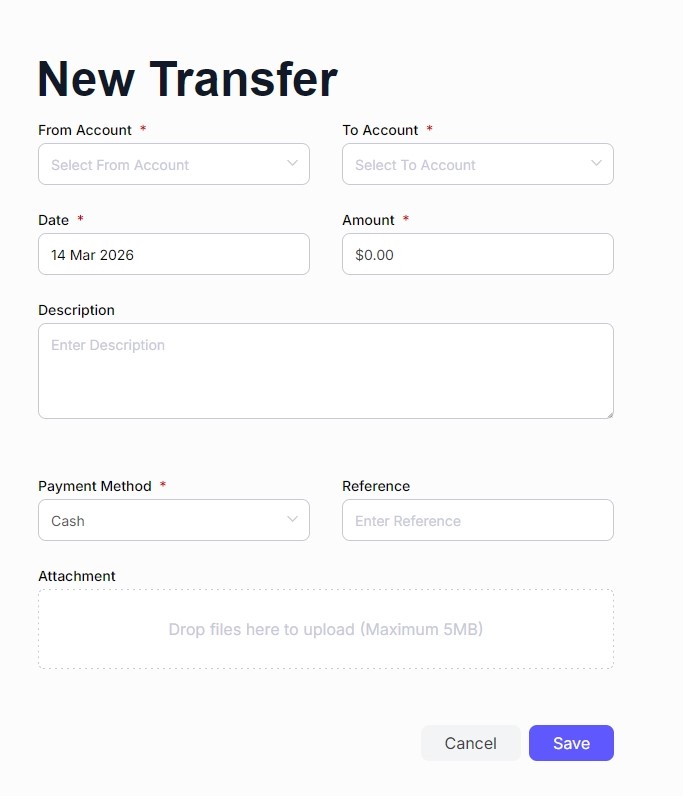
Moving money between your own accounts (e.g., from Savings to Petty Cash) shouldn't be recorded as an expense. Use the Transfer tool instead.
Action & Setup
Go to Banking > Transfers and click New Transfer.
Select the From Account, To Account, Date, and Amount.
Transfer Dashboard
View a history of all internal movements, showing both the "From" and "To" details to ensure balances match. This provides a transparent audit trail for internal fund reallocations.
4. Reconciliations: Mastering Your Books
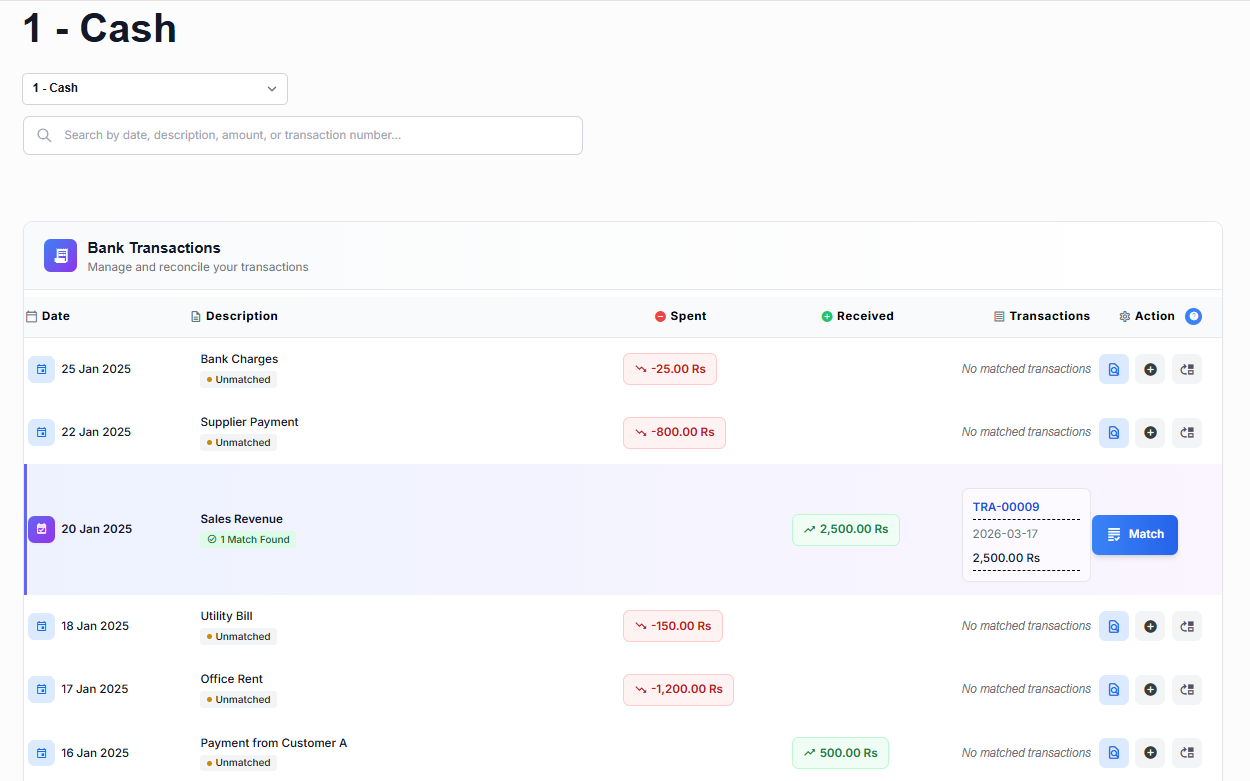
Reconciliation is the process of matching your internal Balnzed records with your actual bank statement. When you select a bank account, use these action buttons to sync your data.
Action Buttons Guide
Find and Match (find_in_page)
Search existing records to find a match for a bank entry. Use this to avoid duplicates if you already recorded the transaction.
Create Transaction (add_circle)
If a bank entry isn't in your system yet, click this to instantly create a reconciled record using the bank's data.
Transfer (move_up)
Use this if the bank entry represents money moving between your own connected accounts.
Match (call_split)
Confirms a match found by the system. If it’s highlighted in green/indigo, the system is confident it has found the right record!
Reports
Financial Reports
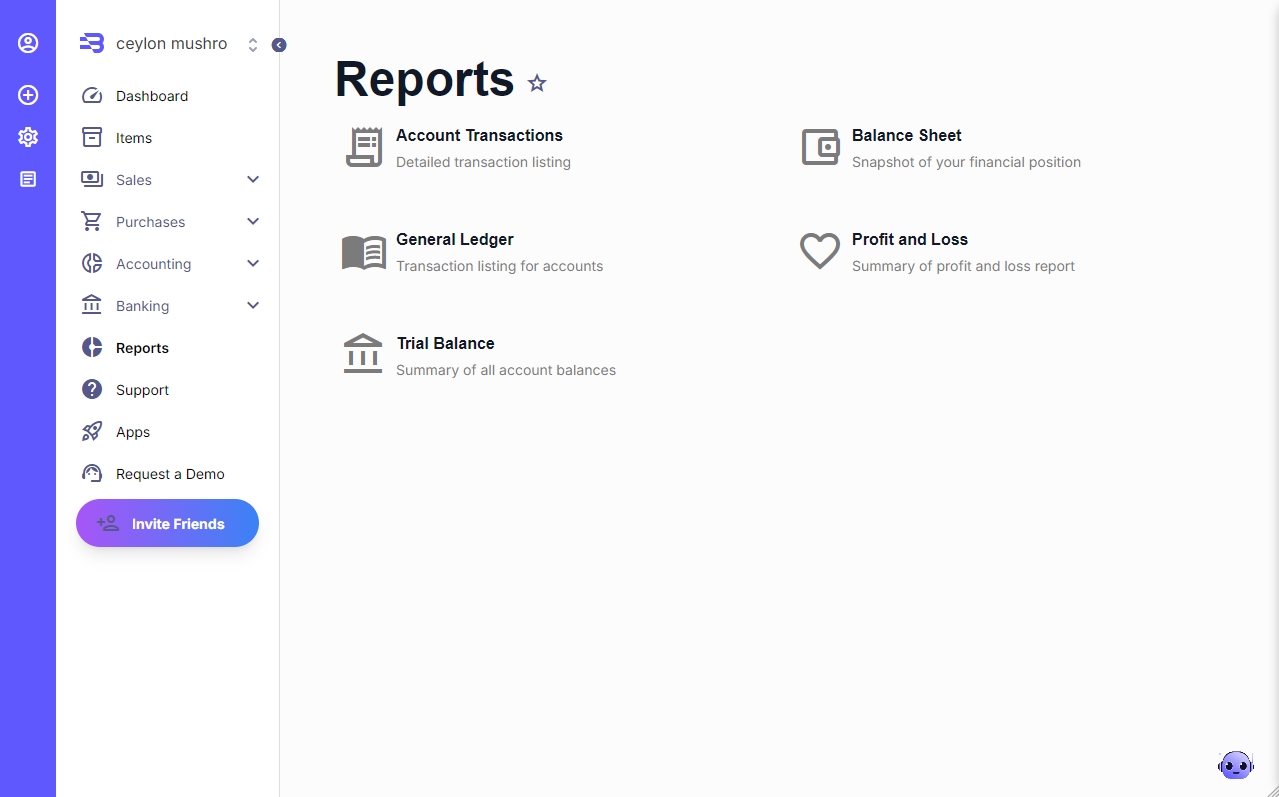
These reports provide the structural data needed for tax compliance and deep financial analysis.
Profit and Loss
A vital summary of your revenue and expenses. Use this to see your 'bottom line' over any specific period.
Balance Sheet
A snapshot of your financial position, showing exactly what you own (Assets), what you owe (Liabilities), and your Equity.
Trial Balance
A summary of the closing balances of all your accounts. It ensures your debits and credits are perfectly balanced.
General Ledger
A comprehensive listing of every transaction categorized by account. This is the 'master record' of your business.
Account Transactions
A detailed, chronological list of every transaction, perfect for auditing specific movements of cash.
How to Generate a Report
Navigate
Go to Reports on the main menu.
Select
Choose the specific report you wish to view.
Define Timeframe
Use the Date Picker (e.g., "This Financial Year").
Export & Share
Most reports can be downloaded as a PDF or CSV/Excel file for sharing with your accountant or stakeholders.
Inventory & Stock Reports
If you manage physical products, these reports help you optimize your supply chain and prevent stockouts.
Stock Summary
View your current stock levels across all warehouses. It calculates the total value of your inventory and helps you estimate potential profits.
Stock In/Out Report
Track the history of your inventory. See exactly when items were added or deducted over time to identify your fastest-moving products.
Settings
1. Company Profile & Branding
Set your business identity so it appears correctly on all your legal documents.
Business Details
Enter your official Name, Email, Phone, and Business Registration Number.
Logo
Upload your company logo (up to 5MB) for a professional invoice look.
Address
Provide full office location including country and postal code.

2. Localisation & Invoice Customization
Localisation
- Financial Year: Define if your year is denoted by start or end date.
- Date Formats: Choose preferred format (e.g., 31 Dec 2026) and separator.
- Percentages: Set percent sign to appear before or after the number.

Invoice Settings
Numbering
Customize Prefix (e.g., "INV-") and number of digits.
Payment Terms
Set defaults like "Due within 30 days" to save time.
Templates
Choose Default or Basic layouts and pick a brand Color.
Custom Fields
Enable up to 6 custom fields for specific invoice data.

Custom Fields

3. Automation: Scheduling & Emails
Enable automatic Invoice Reminders (post-due) or Bill Reminders (pre-due) to manage cash flow.
Customize messages. Use tags like {bill_total} or {customer_name} to pull data automatically.

4. Financial Configuration
Taxes
Create multiple rates (e.g., VAT 18%). Choose Normal or Inclusive tax types.

Currencies
Add trading currencies. Set a base rate (e.g., LKR = 1) for conversion.

Defaults
Set default Bank Account, Tax Rate, and Payment Method for new transactions.

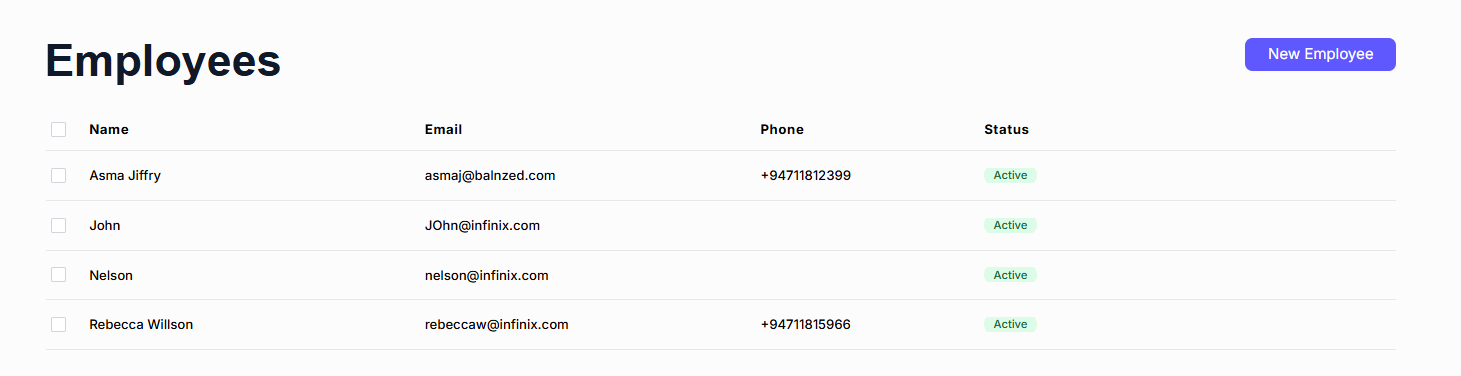
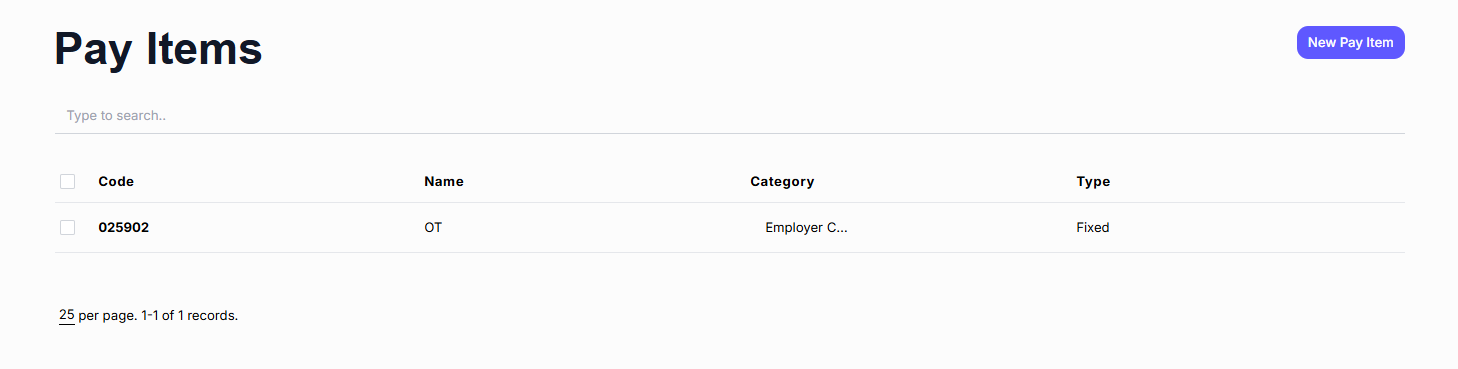
5. HR & Payroll Settings
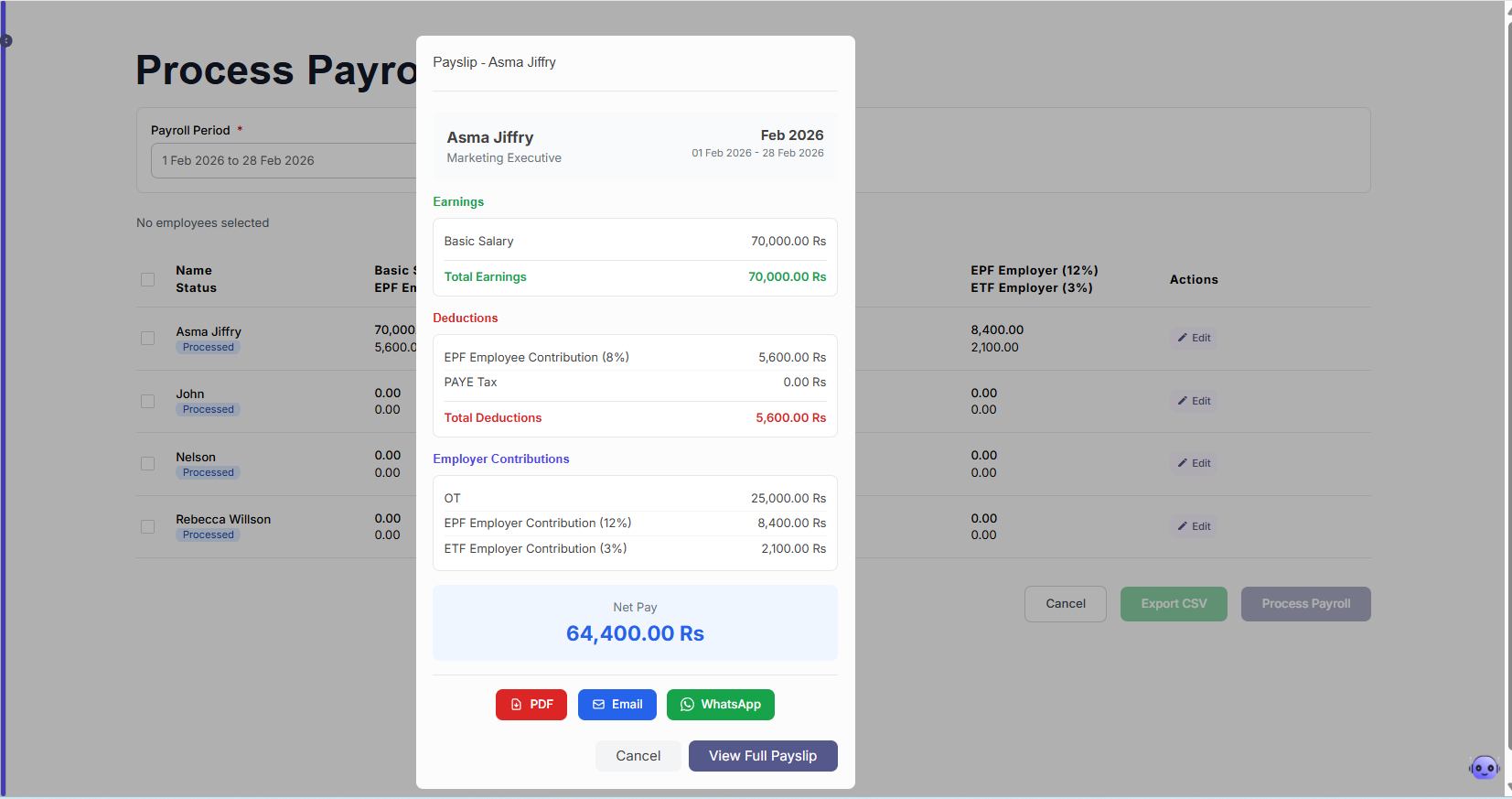
Pay Cycle & Statutory
Pay Frequency
Weekly, Bi-weekly, or Monthly cycles.
Payroll Period
Set start date to align with your business schedule.
Statutory
Enter EPF (Employee/Employer) and ETF percentages.
6. Inventory & Migration
Inventory
Toggle Internal Stock Management to track quantities, warehouse movements, and stock values.
Migrate Data
Moving from another platform? Pull Chart of Accounts, Customers, and Vendors from apps like Xero.
7. Plans & Security
Plans
Manage subscription and upgrade as you grow.
Delete Company
Permanently remove a company profile and its entity data.